
Step 1: Install the Downloader App
On your FireStick home, scroll to the extreme left side to select the Find icon. Move down and open Search.
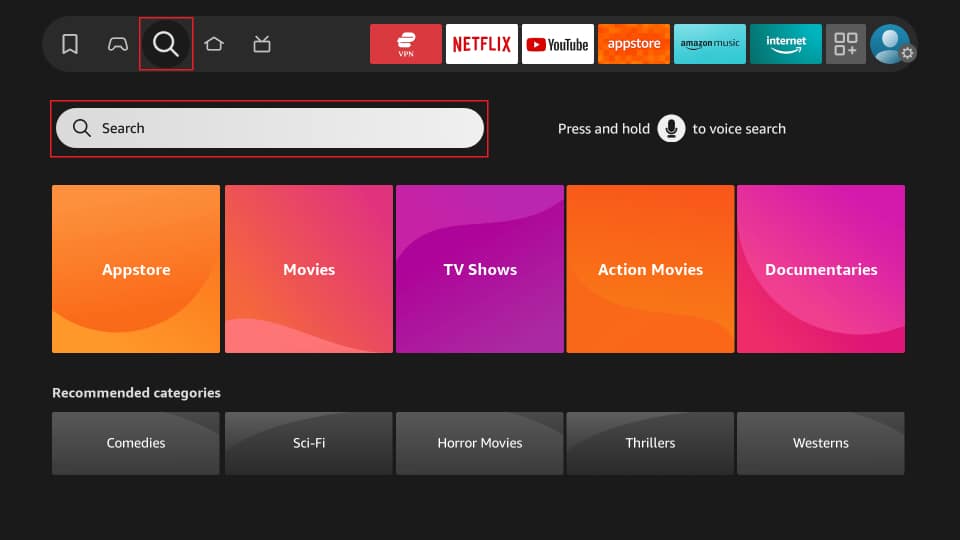
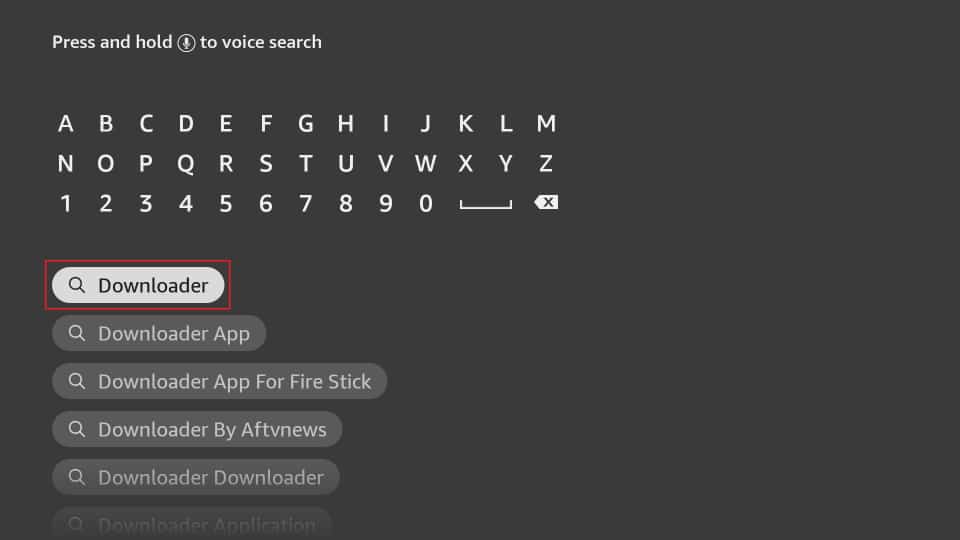
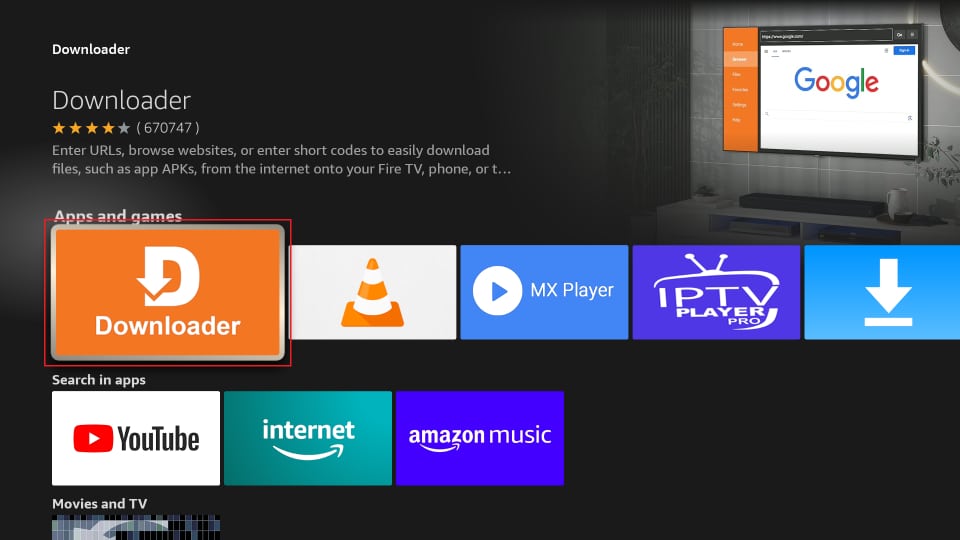
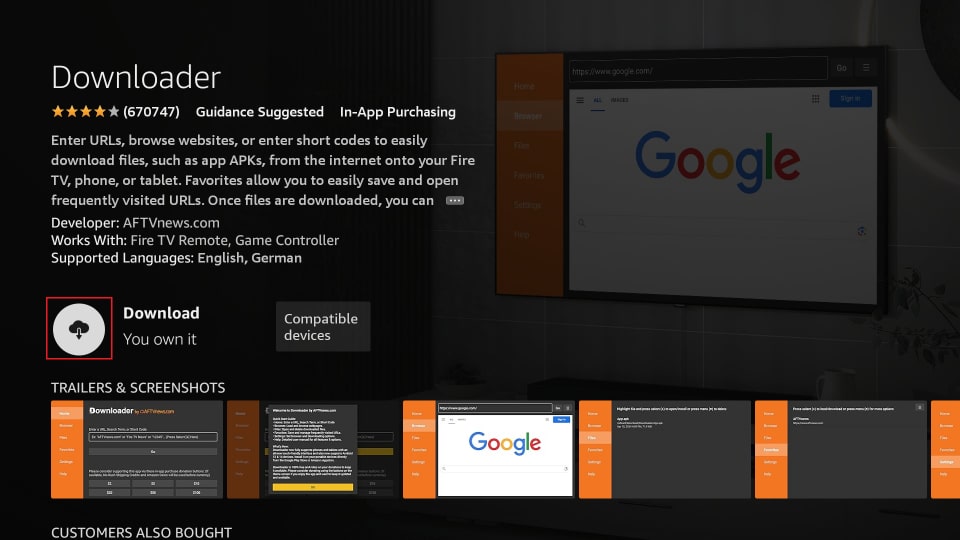
Enter Downloader using the on-screen keypad and select the first Downloader suggestion. Under Apps and Games, select Downloader, then click Get.
Step 2: Unlock your Device
FireStick has a security setting that prevents third-party app installs. Enable sideloading before installing the service apps.
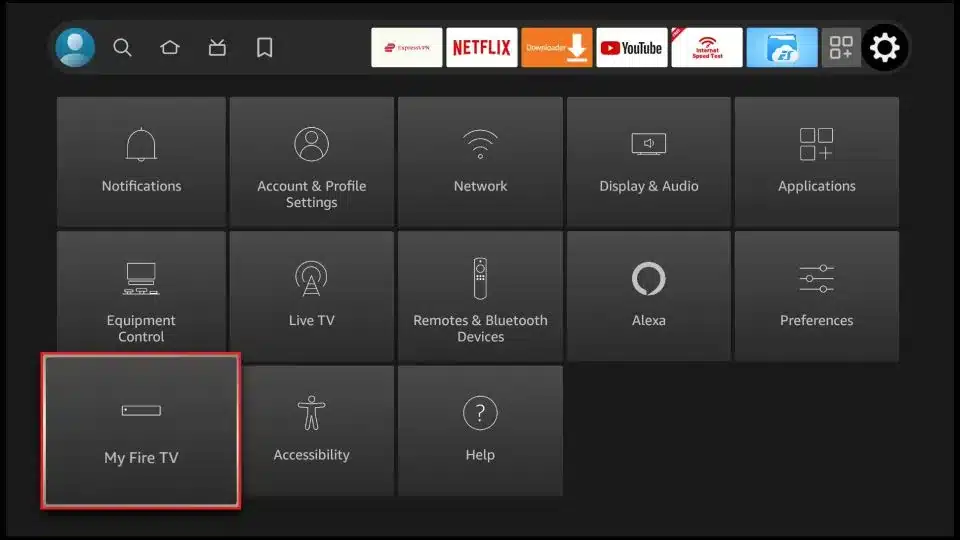
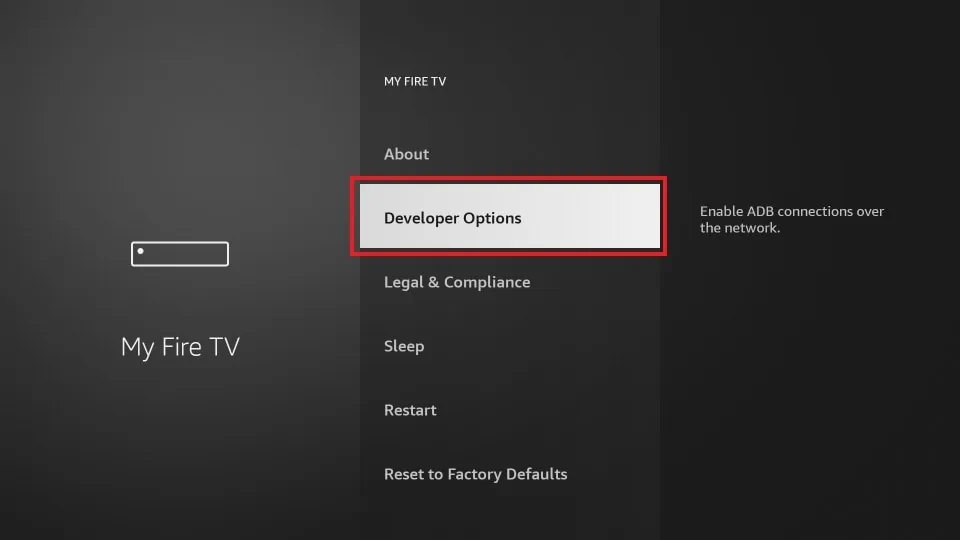
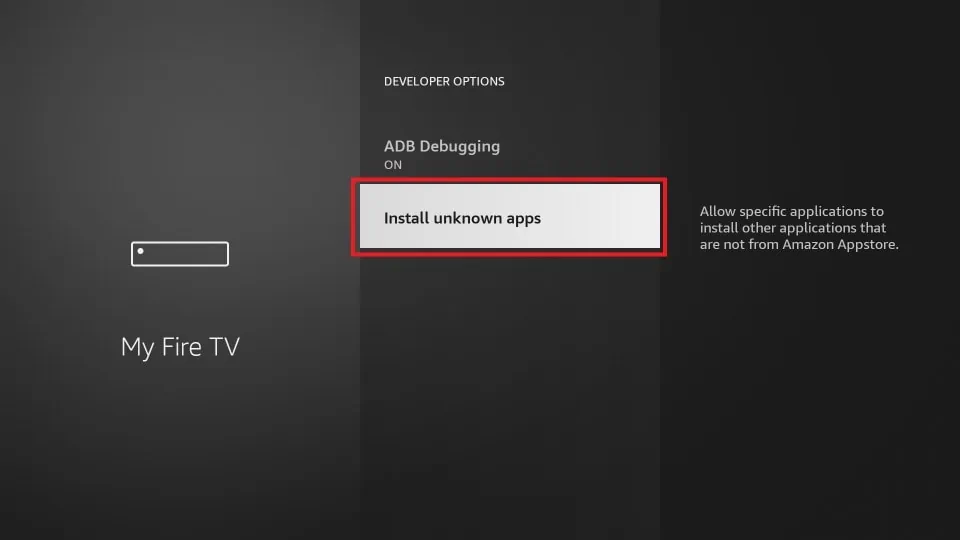
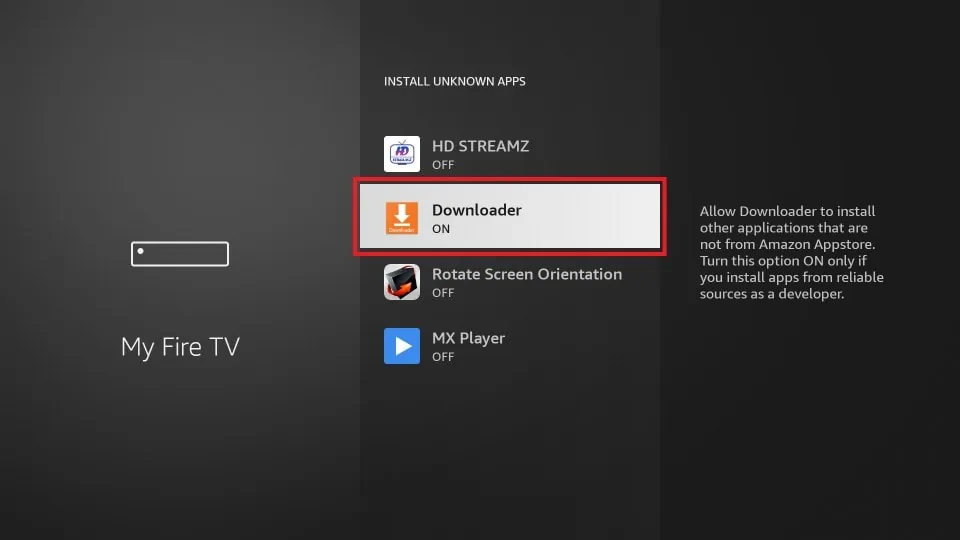
Go to Settings → My Fire TV → Developer Options → Install Unknown Apps, then turn Downloader ON.
Step 3: Download and Install TiviMate
Launch Downloader and select the Enter a URL box. Type 272483 and hit Go.
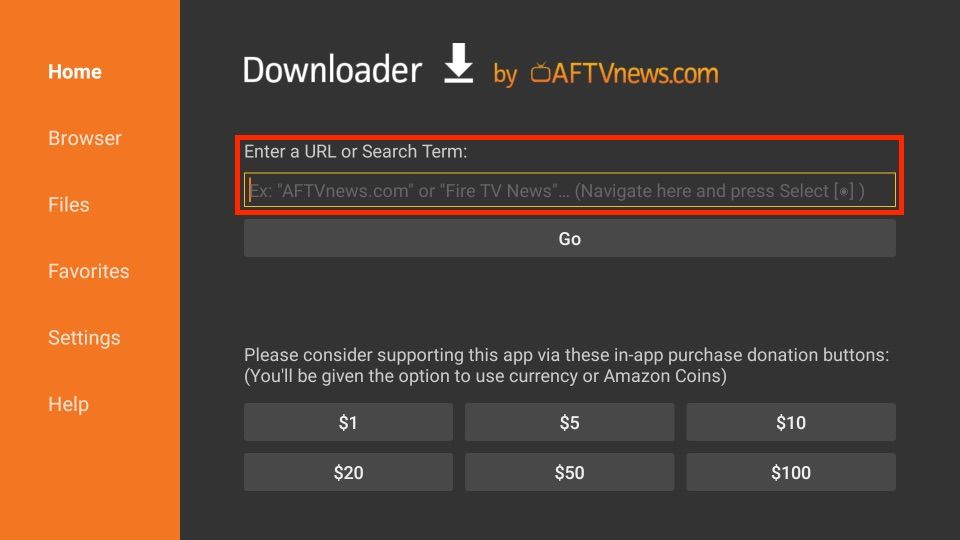
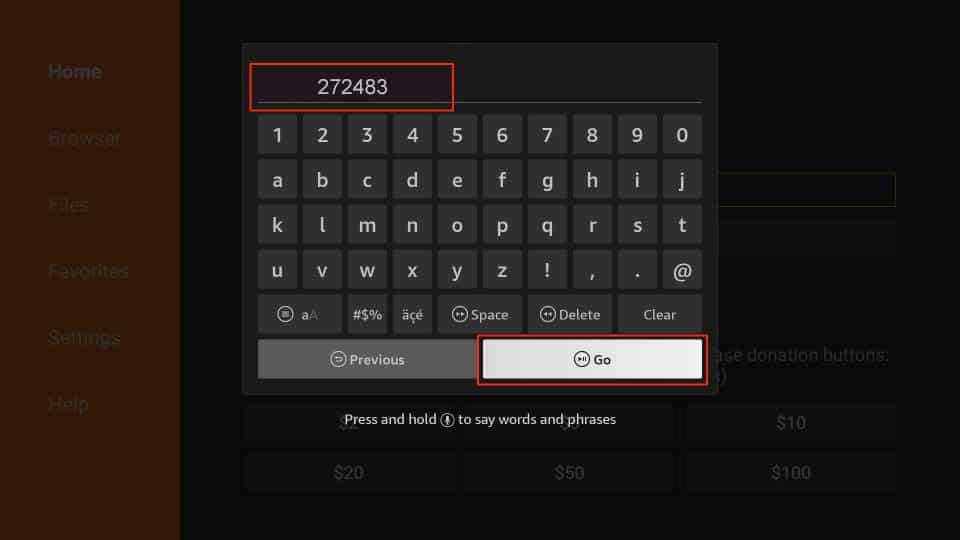
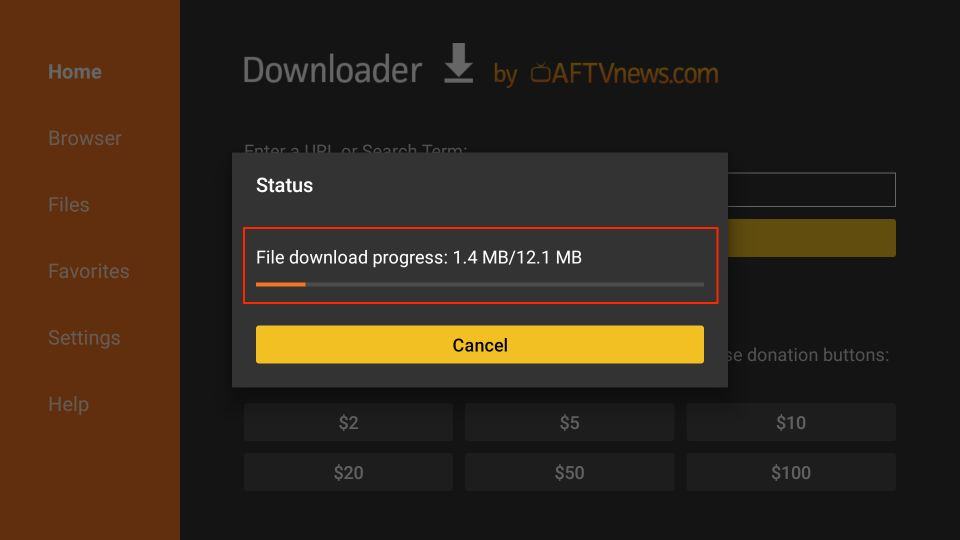
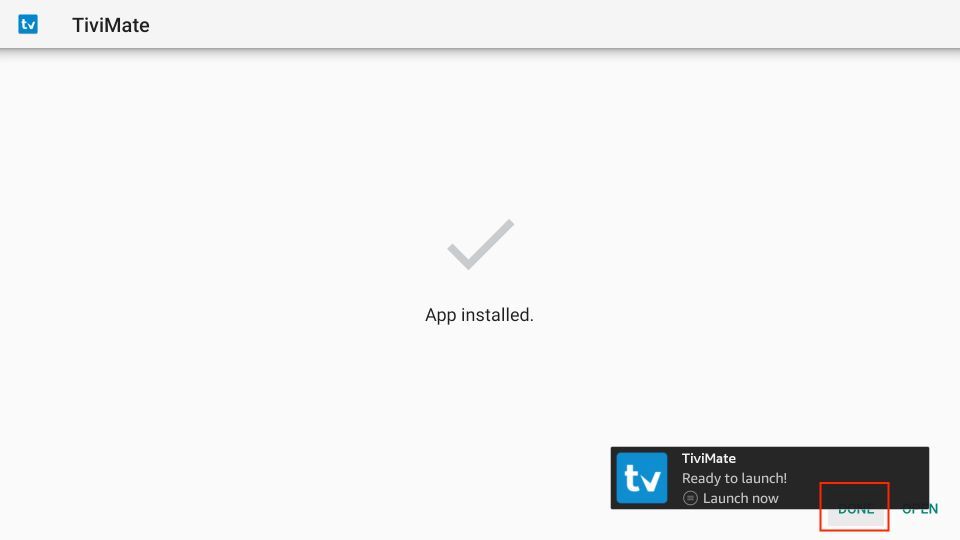
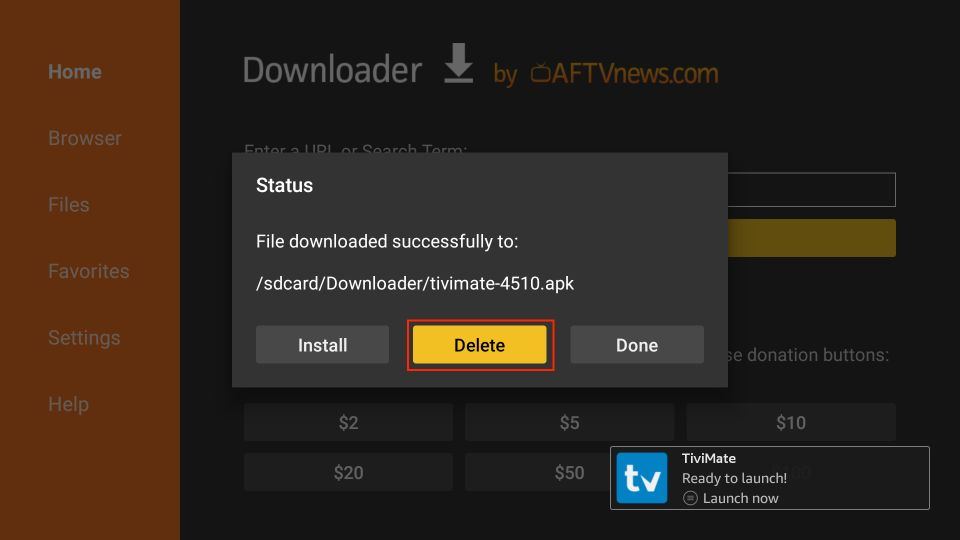
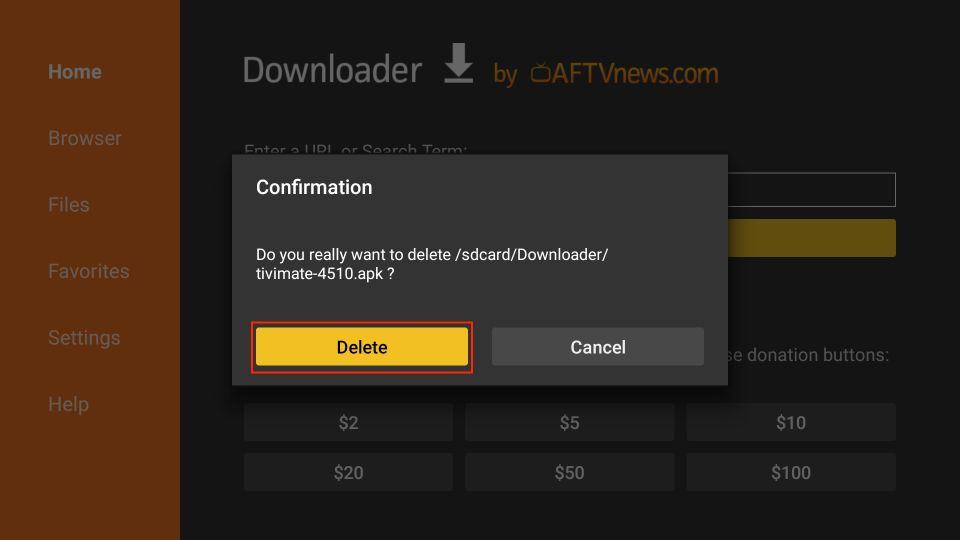
Click Install when prompted. After installation, click Done. Delete the APK file to keep your device clean.
Step 4: Upgrade to TiviMate Premium (Optional)
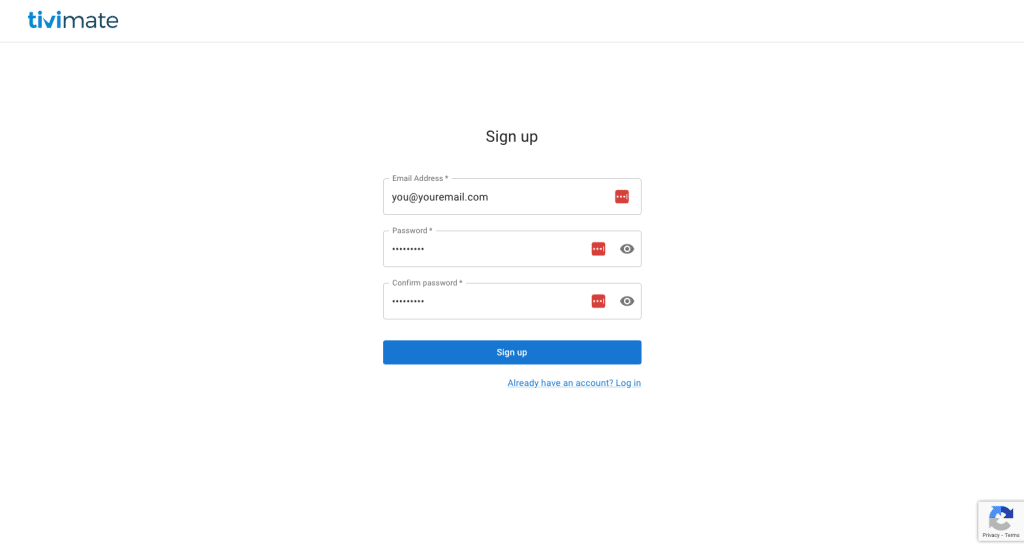
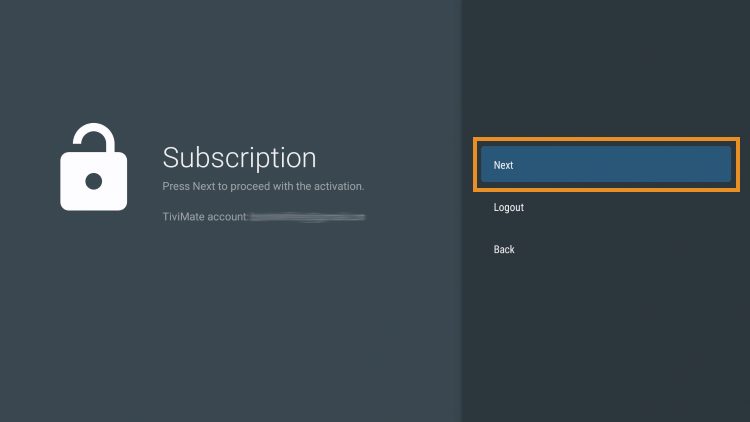
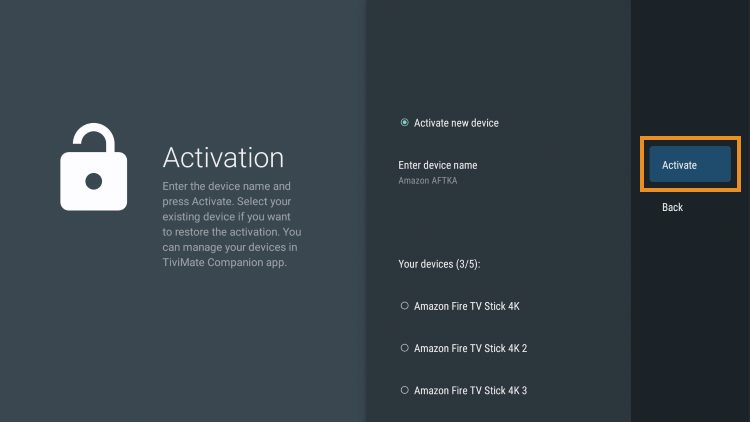
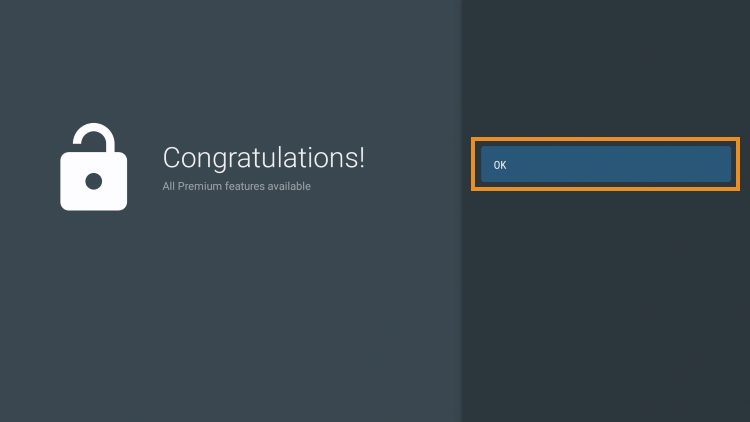
Upgrading to Premium is optional, but recommended for the full features. Create a TiviMate account and purchase their subscription.

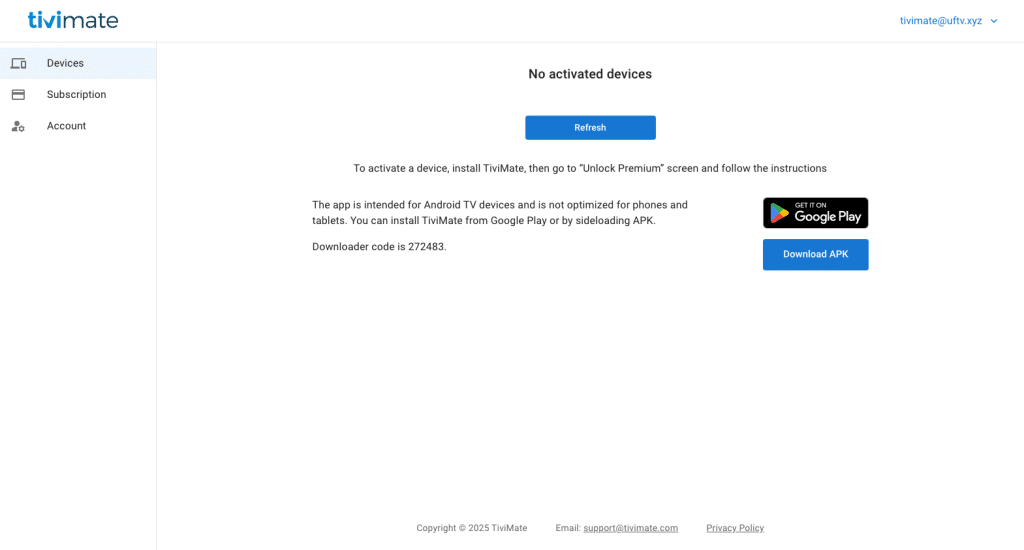
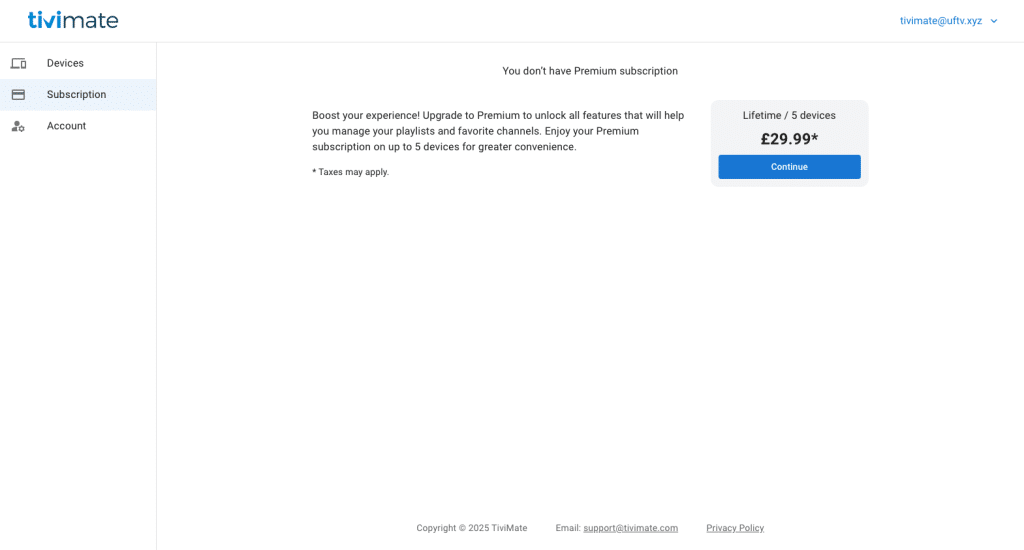
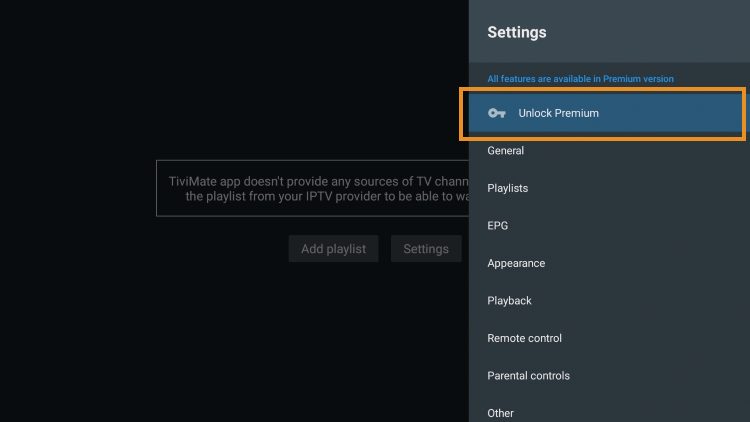
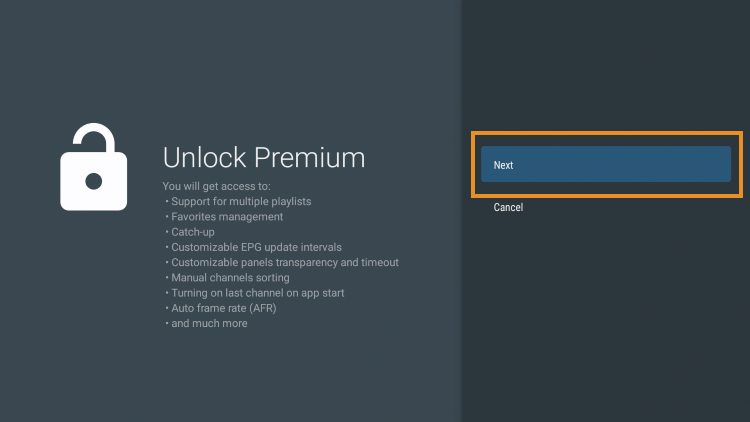
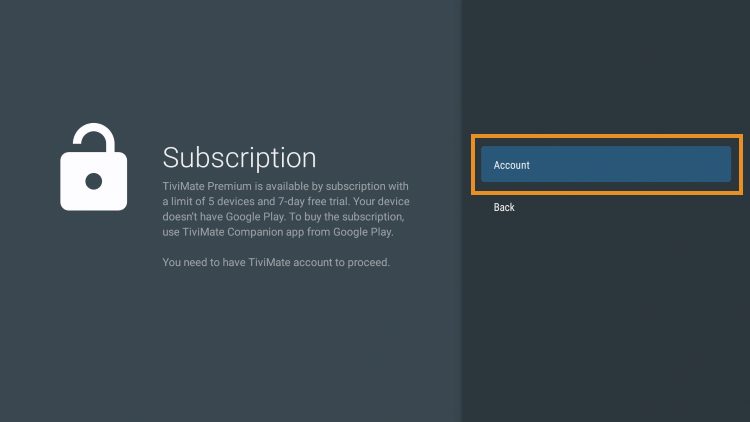
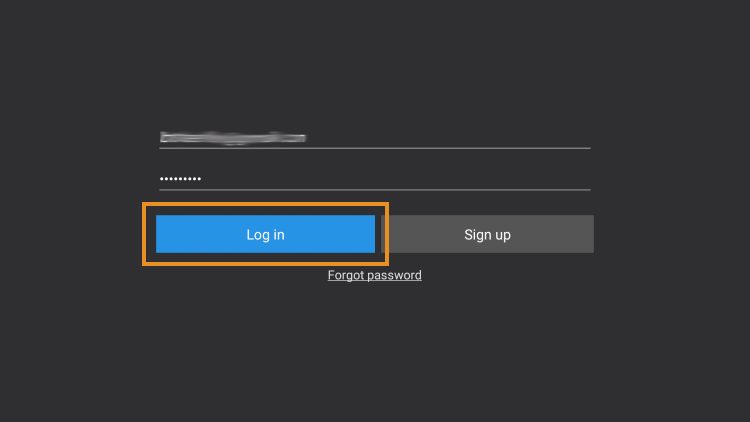
On your device, login to Premium inside TiviMate using Settings → Unlock Premium → Account.
Step 5: Add your UnlockedFIRE Playlists to TiviMate
Select Add playlist. Choose Xtream Codes and enter the login details received by email: server address, username and password. Click Next and finish setup.
Check the email sent after activation. The server URL, username and password are case sensitive.
Step 6: Hide / Remove Adult Content (Optional)
You can hide groups from inside TiviMate by pressing and holding OK on a group, choosing Hide Group, or by going into Settings → Playlists → Manage Groups.
Install Wuffy Player (Optional)
- Open Downloader.
- Enter unlockedfire.co/apk and click Go.
- Select WuffyPlayer.
- Install and accept the terms.
- Configure settings as preferred.
Downloader Links
Common Problems & Troubleshooting
This is usually due to a username or password error. Usernames and passwords are case sensitive. If details are correct, turn on VPN and add the playlist again.
Help & Support
If you would like any help, contact us via Discord or send us an email using the form below.
Join Us on Discord